
This step-by-step guide shows how to use SmartScout for Amazon research: finding niches, products and brands, researching keywords and checking competitors. SmartScout is built around four connected layers of Amazon data, subcategories, brands, sellers and products, and the fastest way to learn it is to follow one workflow from market to keyword instead of opening every tool at once.
The steps below use features listed on SmartScout’s website as of November 2026. Some tools are only available on certain plans (for example, brand data starts on Essentials and seller and subcategory data on Business), so check our SmartScout pricing guide if a step is locked on your account.
Before You Start: Set a Clear Goal
SmartScout has 30+ tools, so decide what you are trying to answer before you log in. Most sessions fall into one of these goals:
- Find a niche to launch a new private label product in.
- Find brands to source for wholesale or online arbitrage.
- Research keywords for a new or existing listing.
- Check competitors: who sells in your category, how they get traffic and where they advertise.
Write your goal and two or three filters you care about (for example price range, product size or how much competition you are willing to face). You will use them in every step below.
Affiliate link — we may earn a commission.
Step 1: Find a Niche with Subcategories
The Subcategories tool organises Amazon’s catalog like a file directory, so you can browse instead of guessing keywords.
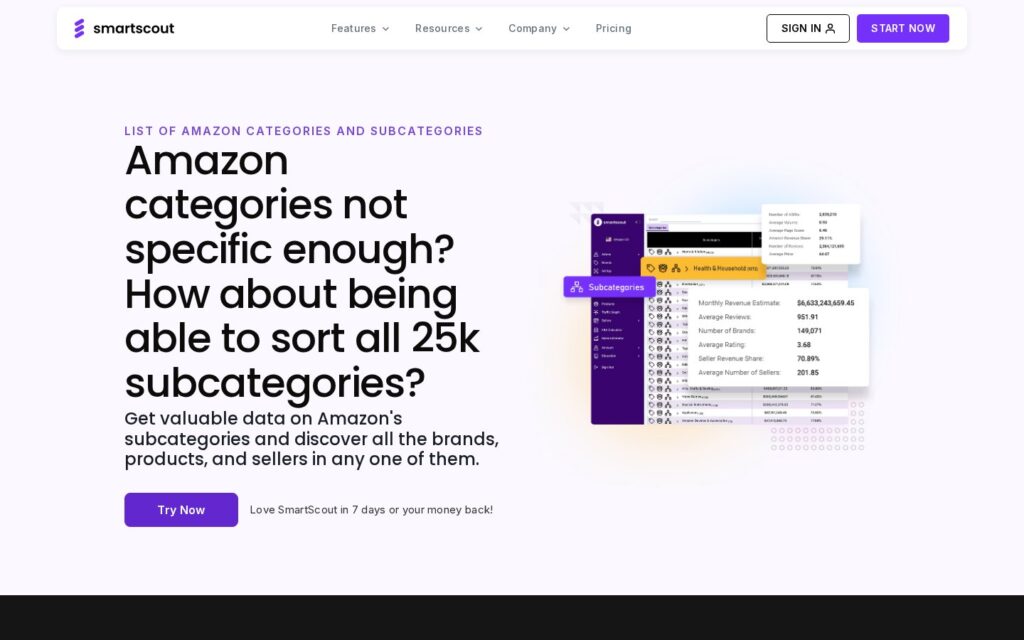
- Choose the category you sell in, or search for a topic, and open subcategories until you reach the level that matches a real buyer need.
- As you browse, SmartScout shows data for each subcategory, such as estimated monthly revenue, along with the brands, products and sellers inside it.
- Use filters such as growth, revenue, competition and average price to narrow the list. A subcategory with steady revenue, moderate competition and a price you can work with is usually a better starting point than the biggest category on Amazon.
- Save a shortlist of three to five subcategories to dig into.
Tip: a big revenue number on its own says little. Look at how that revenue is spread across brands. If one or two brands take most of it, the niche may be hard to enter.
Step 2: Research Brands in Your Shortlist
Open each subcategory’s brand list, or go to the Brands database and filter directly. SmartScout’s brand page suggests filters such as:
- Monthly revenue estimate: raise the range for bigger brands or lower it for smaller ones.
- Average product size: set a low average volume to avoid oversize items and higher fees.
- Amazon in-stock rate: lower the maximum to find brands that Amazon itself is not consistently selling.
- Average selling price: raise the minimum to focus on products with more margin per sale.
For wholesale sellers, the brand view is where most of the work happens: open a brand to see its products, the sellers carrying it and how its revenue is trending, then decide whether it is worth contacting. For private label sellers, the same view shows how strong the existing brands in a niche really are.
Step 3: Check the Sellers Behind a Brand or Niche
On plans with seller data, open the sellers list for a brand or subcategory. For each storefront SmartScout shows an estimated monthly revenue, the brands it carries, its catalog size and how its footprint has changed over time.
- Many sellers on one brand’s listings can mean tight margins and Buy Box competition for wholesale.
- A few strong sellers dominating a subcategory tells a private label seller what level of listing, reviews and ads they will compete against.
- You can also work backwards: open a successful seller’s storefront and see every brand behind it to find new sourcing ideas.
The Seller Map adds location, which helps if you want to find sellers or partners in a specific region.
Step 4: Validate the Product
Once you have a product or ASIN in mind, open its product page in SmartScout. It shows ASIN-level data such as pricing history, ranking movements and Buy Box ownership. Use it to answer a few basic questions:
- Is demand steady, seasonal or falling?
- Does the price hold, or does it drop when new sellers arrive?
- Who usually wins the Buy Box?
- Does the estimated revenue leave room for your costs? The FBA Calculator and Sales Estimator help with a quick profit check.
Remember that revenue and sales figures are estimates. Use them to compare options and spot trends, and check key numbers another way before ordering inventory.
Step 5: Do Keyword Research with Rank Maker
Rank Maker is SmartScout’s keyword tracker and reverse ASIN tool. Enter a product ASIN, yours or a competitor’s, to see the search terms it ranks for organically and through paid ads.
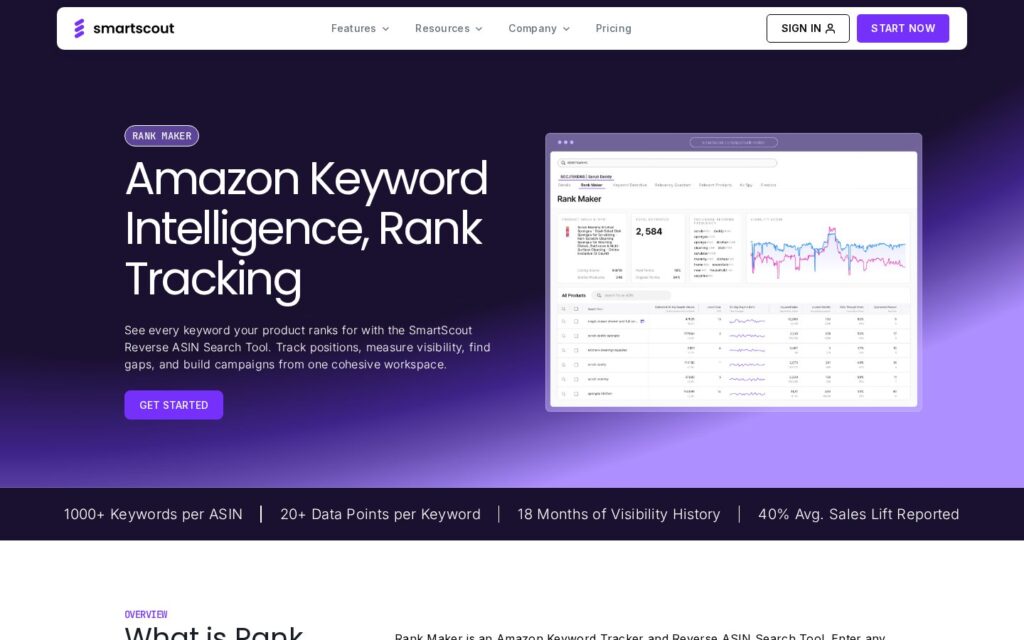
- Enter a competitor’s ASIN and sort the search terms by search volume to see which terms bring them the most traffic.
- Look at each term’s data points, such as rank position, search volume, click-through share and PPC bid estimates.
- Filter for terms where competitors rank well but your listing does not. These are gaps to cover in your title, bullets and backend keywords.
- Track your chosen terms over time, and export the list to CSV or Excel to build your listing and ad campaigns.
Use Search Terms Explorer alongside it when you start from an idea instead of an ASIN: enter a seed term to find related searches and size the demand for a niche.
Step 6: Find Where Competitors Get Traffic with Traffic Graph
The Traffic Graph maps “frequently bought together” relationships around a product, so you can see where competing products get their traffic and which product pages could be worth targeting with ads.
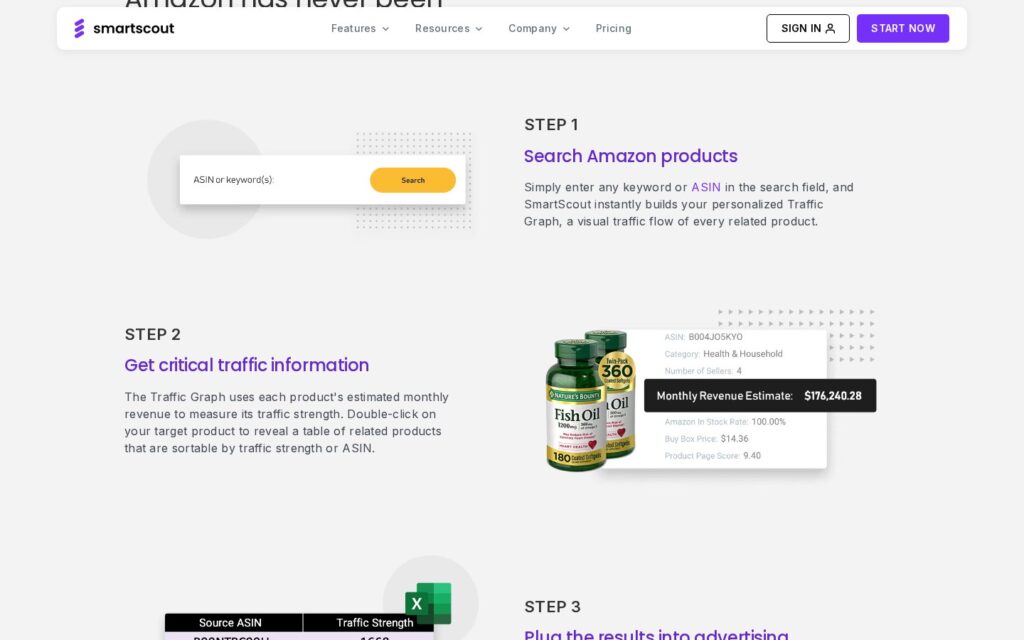
- Enter a keyword or ASIN. SmartScout builds a visual traffic map of related products.
- Double-click your target product to open a table of related products, sortable by traffic strength (based on estimated monthly revenue) or by ASIN.
- Export the table. SmartScout suggests copying the top 20 to 30 ASINs into a product-targeting campaign in Amazon Ads, then repeating the process for other competing products.
Step 7: Keep an Eye on the Market
Research is not a one-time job. After launch or after you start sourcing a brand, come back regularly:
- Track your keywords in Rank Maker to see whether listing changes move your rankings.
- Re-check the brands and sellers in your subcategory for new competitors or price changes.
- On higher plans, use tools such as Share of Voice, historical data (Scope) and Ad Spy to follow competitors’ visibility and advertising.
- Use the Chrome extension to see SmartScout data while you browse Amazon.
A Simple Weekly SmartScout Routine
- Monday: check rankings for your main search terms in Rank Maker.
- Wednesday: review one subcategory or brand list for new opportunities.
- Friday: look at one competitor’s traffic sources in Traffic Graph and update your ad targets.
Thirty minutes a few times a week is usually more useful than one long session a month, because you catch changes while you can still act on them.
Common Mistakes to Avoid
- Opening every tool at once. Start with one goal and one workflow.
- Trusting a single number. Revenue estimates are a guide; look at trends and the spread across brands.
- Ignoring plan limits. If a step needs brand, seller or subcategory data, check which plan includes it before you build your process around it.
- Skipping the money-back window. Test SmartScout on a real task during the first seven days so you can make an informed decision.
Want an overview first? Our SmartScout review covers features, pros, cons and alternatives.
Affiliate link — we may earn a commission.
Related guides
- SmartScout Pricing Explained: Plans, Features and Costs
- Semrush vs Ahrefs: Which SEO Tool Should a Small Business Choose?
- The Best Digital Marketing Tools for Small Businesses
How to Use SmartScout: FAQ
Is SmartScout easy to use for beginners?
The interface is approachable, but there are a lot of tools. Beginners get the most out of it by following one workflow, such as subcategory, then brands, then product, then keywords.
How do I find products to sell with SmartScout?
Start in Subcategories, filter by revenue, growth and competition, then open the products and brands inside your shortlist and validate one product’s pricing, ranking and Buy Box history.
Can SmartScout help with Amazon keyword research?
Yes. Rank Maker shows the search terms any ASIN ranks for, with data such as search volume and rank position, and Search Terms Explorer finds related searches from a seed term.
What is the SmartScout Traffic Graph?
It is a visual map of “frequently bought together” relationships that shows where competing products get traffic and which product pages could be worth targeting with ads.
Does SmartScout have a Chrome extension?
Yes. SmartScout lists a Chrome extension that shows its data on Amazon pages, and the Product Research Extension is included from the Basic plan.