
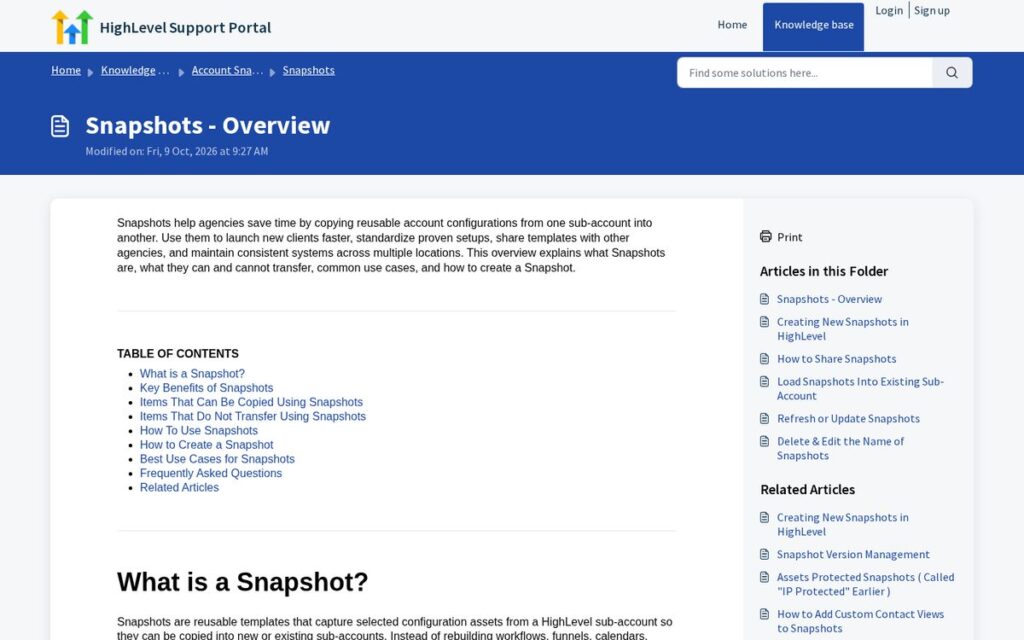
A HighLevel snapshot is a reusable template of a sub-account’s setup. According to HighLevel’s Snapshots overview, snapshots “capture selected configuration assets from a HighLevel sub-account so they can be copied into new or existing sub-accounts,” such as workflows, funnels, calendars, forms and dashboards. They copy the setup, not the data: contacts, conversations and appointments do not transfer.
For agencies, snapshots are how you onboard a new client in minutes instead of rebuilding everything by hand. This guide covers what snapshots copy, how to create, load, share and update one, and the mistakes to avoid.
What Is a HighLevel Snapshot?
Think of a snapshot as a photo of a working account’s configuration. You build a sub-account the way you want it (pipelines, workflows, funnels, email templates, calendars), then create a snapshot from it. HighLevel’s help center is clear that you do not build a snapshot from scratch: you configure a source sub-account first and create the snapshot from that.
Common uses listed by HighLevel include standardized client onboarding, launching sub-accounts with a proven setup, vertical templates (dental, legal, spa, fitness, real estate, home services), supporting SaaS offers, and sharing or selling templates to other agencies.
Affiliate link — we may earn a commission.
What a HighLevel Snapshot Copies (and What It Doesn’t)
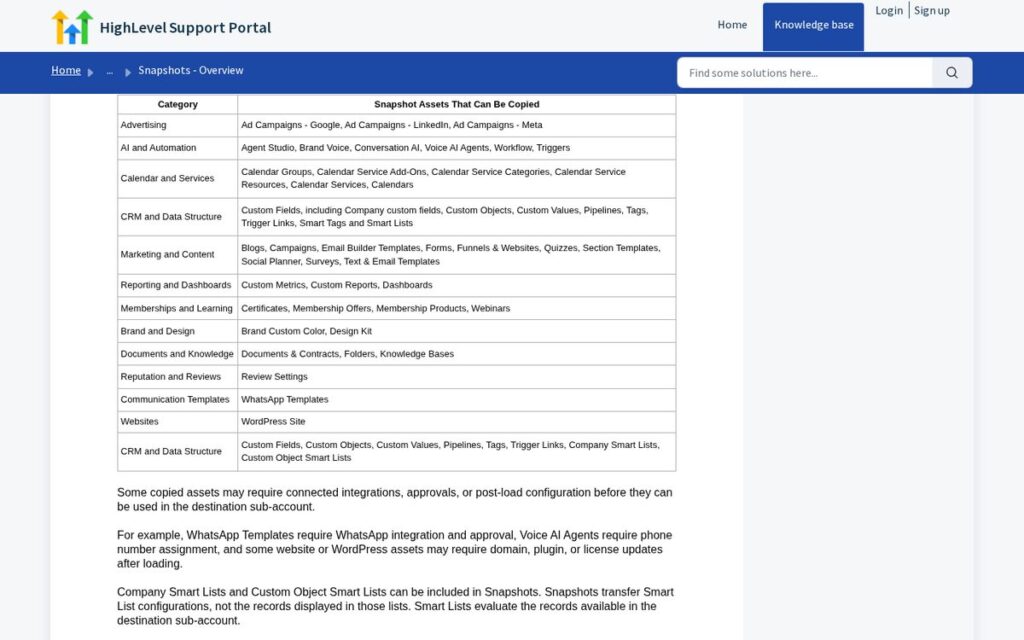
| Copied (examples from HighLevel’s list) | Not copied |
|---|---|
| Workflows and triggers, Conversation AI and Voice AI agents | Contacts |
| Calendars, calendar groups and services | Appointments |
| Custom fields, custom values, pipelines, tags, smart lists | Conversations and message history |
| Funnels and websites, forms, surveys, quizzes, blogs | Reputation data and live account activity |
| Email and text templates, campaigns, social planner | Stripe connections and third-party integrations |
| Dashboards, custom reports and metrics | Phone numbers assigned to Voice AI agents |
| Memberships, courses, certificates, documents and contracts | Third-party plugin or theme licenses that need re-authentication |
| Brand colors and design kit, review settings, WhatsApp templates | WhatsApp usability before Meta approval |
HighLevel also notes that some copied assets need setup after loading, for example WhatsApp templates need approval, Voice AI agents need a phone number assigned, and WordPress assets may need domain or license updates.
How to Create a Snapshot
These steps follow HighLevel’s Creating New Snapshots guide:
- Build a clean source sub-account with only the assets you want to reuse.
- In Agency View, open Account Snapshots.
- Click + Create New Snapshot.
- Name it for its use case (for example “Dental – Lead to Booking”) and select the source sub-account.
- Choose assets: Select All, or expand categories and pick individual items. Company custom fields can be included.
- Click Create.
How to Load a Snapshot Into a Sub-Account
You can load a snapshot when creating a new sub-account, or into an existing one. According to HighLevel’s FAQ, when loading into an existing sub-account you choose which assets to import, review conflicts and decide whether to override or skip conflicting assets. Loading is meant to add assets, and existing data is only affected when you choose to override a conflicting asset.
- New client: create the sub-account from the snapshot so it starts fully configured.
- Existing client: load only the categories you need, and skip conflicts unless you mean to replace them.
Sharing, Importing and Updating Snapshots
| Action | What it does (per HighLevel) |
|---|---|
| Share | Generates a share link so another agency or recipient can access the snapshot |
| Import | Adds a shared snapshot to your agency-level snapshot library |
| Refresh | Updates the snapshot with selected changes from the source sub-account |
| Push updates | Sends refreshed snapshot assets to linked sub-accounts |
| View assets | Lets you inspect included assets before loading, sharing, refreshing or pushing |
| Manage linked assets | Controls which assets stay linked for future pushes |
Two points from HighLevel’s FAQ matter here: snapshots do not update automatically when you change the source account (you must refresh them), and share links come in several types, including reusable, one-time, email, agency-restricted and sub-account-restricted links.
Snapshot Best Practices for Agencies
- Keep a “master” source sub-account per niche and never use it for a live client.
- Use custom values for business name, phone and links so templates fill in correctly for each client.
- Name and version your snapshots so you know which one a client was built from.
- Test every load in a test sub-account before using it with a client.
- Write a post-load checklist: phone numbers, domains, integrations and payment connections must be set up per client.
- Only import snapshots from sources you trust, and review the assets before loading.
Snapshots pair naturally with automation. See our guide on how much time HighLevel automation can save, and our HighLevel review for the wider platform picture.
Common HighLevel Snapshot Mistakes
- Building the snapshot from a live client account. Client-specific names, links and tags end up in every future account. Use a clean master account instead.
- Forgetting that snapshots do not refresh themselves. If you improve a workflow in the source account, the snapshot keeps the old version until you refresh it.
- Overriding conflicts by habit. When loading into an existing sub-account, overriding a conflicting asset can replace a client’s customized version. Skip conflicts unless you are sure.
- Skipping the post-load setup. Integrations, payment connections and phone numbers do not transfer, so workflows that depend on them will not work until they are connected.
- Loading untested snapshots from unknown sources. A downloaded template can bring in workflows that send messages you did not write. Review every asset first.
Snapshots and SaaS Offers
HighLevel lists “supporting SaaS offers with prebuilt account templates” as one of the main uses for snapshots. When an agency sells software plans to clients, each new client account can start from a snapshot so the product works on day one. Snapshots themselves are available to agencies in the agency view; how you package and bill them depends on your HighLevel plan, so check the pricing page and the SaaS documentation for the features on your tier.
Even if you never resell software, the same idea applies: the more clients you serve in one niche, the more a well-built snapshot saves you on every onboarding.
Example: A Snapshot for a Local Service Business
A home services snapshot might include: a lead form and landing page, a pipeline (New lead, Estimate booked, Estimate sent, Won, Lost), a booking calendar with reminders, a new-lead follow-up workflow, a missed call text-back workflow, a review request workflow and a simple dashboard. Loading it into each new client account gives every client the same proven starting point, then you adjust copy, branding and service areas.
Affiliate link — we may earn a commission.
Related guides
- What Is HighLevel? What It Does and Who It Fits (2026)
- HighLevel Free Trial: How It Works and What to Set Up First
- HighLevel SaaS Mode Explained: How It Works and Who It Fits
HighLevel Snapshot FAQ
What is a snapshot on HighLevel?
A reusable template of a sub-account’s configuration, such as workflows, funnels, calendars and forms, that can be loaded into new or existing sub-accounts.
How do you load a snapshot in HighLevel?
Create a new sub-account from the snapshot, or load it into an existing sub-account, choose which assets to import and decide how to handle conflicts.
How do you make a GHL snapshot?
Configure a source sub-account, then go to Agency View, Account Snapshots, click + Create New Snapshot, select the source account and assets, and click Create.
Do snapshots include contacts?
No. HighLevel says snapshots transfer configuration and selected assets, not contacts, appointments, conversations or live account history.
Want a Snapshot Built for Your Niche?
ScaleMyClick designs lead-to-booking systems and AI automation for small businesses and agencies. Get a free marketing audit and we will map the setup worth turning into a reusable template.