
A HighLevel workflow is an automation made of a trigger (the event that starts it) and actions (the steps that follow). HighLevel’s own Getting Started with Workflows guide gives the simplest example: a lead submits a form, and the workflow sends a confirmation email and SMS. Below are 10 HighLevel workflow examples worth building first, in the order most small businesses and agencies get value from them.
Each example lists the trigger, the actions and a tip. Action names match HighLevel’s published list of workflow actions as of November 2026.
How HighLevel Workflows Work
Every workflow has three parts, according to HighLevel’s introduction to workflows:
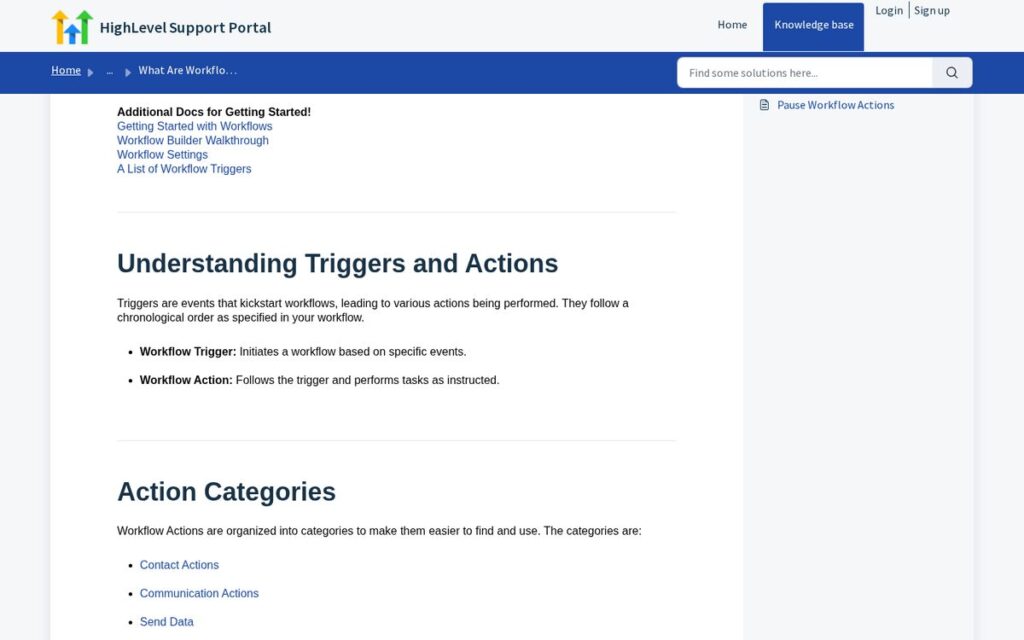
- Trigger: the event that starts it, such as a form submitted, an appointment booked or a payment received.
- Filters (optional): conditions that narrow when the trigger fires.
- Actions: what happens next, in order, such as Send SMS, Send Email, Add Contact Tag, Assign to User, Add Task, Wait Step or If Else.
HighLevel groups actions into categories such as contact, communication, internal tools, appointments, opportunities, payments and marketing in its complete list of workflow actions. It also offers pre-built workflow recipes you can customize instead of starting from scratch.
Affiliate link — we may earn a commission.
10 HighLevel Workflow Examples to Build First
1. New lead instant follow-up
Trigger: form submitted. Actions: Add Contact Tag (“new lead”), Create/Update Opportunity in your pipeline, Send SMS (“Thanks, we got your request…”), Send Email with next steps, Internal Notification to the owner, Assign to User. Tip: this is the workflow that makes speed-to-lead automatic. Build it first.
2. Missed call text-back
Trigger: a missed inbound call. Actions: Send SMS asking how you can help, Add Task to call back, Internal Notification. Tip: HighLevel lists missed call text-back among its lead capture features, so many local businesses start here.
3. Appointment confirmation and reminders
Trigger: appointment booked. Actions: Send Email and Send SMS confirmations, Wait Step until the day before, Send SMS reminder, Wait Step until two hours before, Send SMS reminder. Tip: include a reschedule link so people move appointments instead of skipping them.
4. No-show recovery
Trigger: appointment status changed to no-show (HighLevel’s Update Appointment Status action supports statuses such as no show and completed). Actions: Send SMS with a rebooking link, Wait Step one day, If Else (rebooked or not), Add Task for a call if not rebooked.
5. Lead nurture sequence
Trigger: tag added (“not ready yet”). Actions: a series of Send Email steps spaced with Wait Steps, with useful content rather than hard pitches, and an If Else that stops the sequence when the contact replies or books. Tip: use Remove from Workflow or a goal event so people who convert stop getting nurture emails.
6. Pipeline stage automation
Trigger: opportunity moved to a stage such as “Proposal sent”. Actions: Wait Step two days, If Else (still in stage), Send Email check-in, Add Task for the salesperson. Tip: pipelines stay accurate when stage changes trigger the next task automatically.
7. Review request after a completed job
Trigger: opportunity marked won or appointment completed. Actions: Wait Step a few hours, Send Review Request, Wait Step, Send SMS reminder if no review. Tip: HighLevel’s action list includes a dedicated Send Review Request action, which ties into its reputation tools.
8. Payment received onboarding
Trigger: payment received. Actions: Add Contact Tag (“customer”), Send Email with a welcome and next steps, Add Task for the onboarding call, Internal Notification to the team. Agencies can use the same pattern to collect client assets after a contract is paid.
9. Internal task routing
Trigger: form submitted with a specific service selected. Actions: If Else on the service field, Assign to User for the right team member, Add Task with a due date. Tip: this keeps leads from sitting in a shared inbox where everyone assumes someone else will reply.
10. Old lead reactivation
Trigger: a smart list or tag of contacts with no activity for months, added in batches. Actions: Send SMS or Send Email with a relevant offer, If Else on reply, Create/Update Opportunity for anyone who responds. Tip: HighLevel’s Drip Mode sends contacts through a workflow in batch sizes, which helps avoid overloading your channels.
HighLevel Workflow Examples at a Glance
| Workflow | Trigger | Main actions |
|---|---|---|
| New lead follow-up | Form submitted | SMS, email, opportunity, notify, assign |
| Missed call text-back | Missed call | SMS, task, notify |
| Appointment reminders | Appointment booked | Confirmations, wait steps, reminders |
| No-show recovery | Status: no-show | Rebook SMS, if/else, task |
| Lead nurture | Tag added | Email series, wait steps, stop on reply |
| Stage automation | Opportunity stage changed | Check-in email, task |
| Review request | Job won/completed | Send Review Request, reminder |
| Payment onboarding | Payment received | Tag, welcome email, task |
| Task routing | Form with service field | If/else, assign, task |
| Reactivation | Inactive list in batches | SMS/email, if/else, opportunity |
How to Build Your First HighLevel Workflow
HighLevel’s getting started guide describes creating a workflow in three main steps: choose a trigger, add optional trigger filters, then add actions. In practice, the process looks like this:
- Open the Workflows area in your sub-account and create a new workflow, either from scratch or from a pre-built recipe.
- Click Add New Trigger and choose the event, for example a form submission. Select the specific form so the workflow does not fire for every form.
- Add actions in the order they should happen. Start with the message the lead sees, then the internal steps (tag, opportunity, task, notification).
- Insert Wait Steps where timing matters, and an If Else branch wherever the next step depends on what the contact did.
- Save, test with your own contact record, check the execution history, then publish.
Keep each workflow focused on one job. Several small workflows that hand off to each other (HighLevel’s Go To action moves a contact into another workflow) are easier to fix than one giant automation.
Best Practices for HighLevel Workflows
- Name workflows clearly (“Lead – Website form – Instant follow-up”) so the list stays manageable.
- Test with your own contact before turning a workflow on.
- Use If Else to stop sequences once someone replies, books or buys.
- Watch usage: SMS, calls and emails are billed by usage from the wallet, per the HighLevel Pricing Guide.
- Only text people who agreed to receive texts and honor opt-outs. Messaging rules vary; this is not legal advice, so check with your counsel for your use case.
- Save proven workflows in a snapshot if you are an agency, so new clients start with them.
Curious how much time these automations can save? Read how much time HighLevel automation can save you. If you want AI to handle calls inside a workflow, see how to create a voice AI agent in HighLevel.
Affiliate link — we may earn a commission.
Related guides
- Marketing Automation for Small Business: Where to Start
- HighLevel Free Trial: How It Works and What to Set Up First
- What Is HighLevel? What It Does and Who It Fits (2026)
HighLevel Workflow FAQ
Can you give me an example of a workflow?
A simple one: when a lead submits a form, HighLevel adds them to your pipeline, sends a confirmation text and email, and notifies your team. That is HighLevel’s own starter example.
Is HighLevel hard to set up?
The basics are approachable, and HighLevel provides pre-built workflow recipes. Complex multi-branch automations take more planning. Start with one workflow and expand.
What are the 5 steps of a workflow?
A practical way to plan any automation: define the goal, choose the trigger, add filters, add actions in order, then test and turn it on.
Do workflows cost extra in HighLevel?
Workflows are included as a core feature on every plan, but the messages they send (SMS, calls, email) are usage-based. HighLevel’s Pricing Guide also lists workflow premium features and external AI models among its usage-based items.
Want These Workflows Built for You?
ScaleMyClick builds follow-up workflows and AI automation for small businesses and agencies. Get a free marketing audit and we will show you which automations would save your team the most time.